December 9, 2025
How to Improve Lidar Accuracy and Quality

Global Mapper 27 is here. Geodetic accuracy, built into every workflow.
As with any commodity or raw material, the quality of point cloud data, such as lidar, directly affects the quality of its derivative products. A point cloud with positional accuracy below the required standard will produce an inaccurate Digital Terrain Module (DTM); misclassified points will result in a misrepresentation of any extracted vector features; noise points falling either above or below the expected elevation range will likely corrupt any subsequent analysis or data processing workflow.
Global Mapper Pro® provides a plethora of tools for editing, filtering, and generally improving the quality of point cloud data. The updated point cloud can subsequently be utilized in Pro’s extensive range of analysis tools, or it can be exported to create an improved version of the lidar data as a final deliverable.
Anyone who imports point cloud data into Global Mapper will see that loading a file immediately presents several options for specifying which points are brought in. The options include only loading points within selected bounds, allowing users to crop the points imported, and decreasing load and processing time. While this built-in filtering can be convenient, it’s often best to begin by examining the dataset as a whole. A quick review of the point distribution, classifications, and overall characteristics post-import often provides the context needed to decide which filters will deliver the most reliable results.

Often, the first pass at assessing a dataset is simply to look at it. Does the point cloud fully cover your area of interest, or are there gaps? When viewed in the 3D Viewer, do any vertical spikes or sagging areas jump out?
Beyond that visual check, a more deliberate QC step begins with the layer’s metadata, available by right-clicking the layer in the Control Center. Here, Global Mapper lays out key details including elevation range, average point density and spacing, collection date, and the existing point classifications. This snapshot offers an immediate picture of how the data was captured and what it contains.
With that context in hand, you can move into targeted improvement steps to correct gaps, refine classifications, and strengthen the overall reliability of the point cloud.
The process of improving lidar accuracy and quality falls under two general categories: editing and filtering. Editing typically involves updating the characteristics of points, while filtering means the removal of points that are not needed or that are deemed to be erroneous. Often, these two procedures are applied in tandem.
One of the most common steps when working with point cloud data is assigning or updating classification values to represent the type of surface. Common classes include ground, building, and vegetation, among many others. In some datasets—particularly those generated through photogrammetry—all points commonly begin as unclassified, making it necessary to apply meaningful classes before any structured analysis can take place.
In Global Mapper Pro, classifications can be updated manually by selecting the points to modify and applying the desired class using the preconfigured classification buttons in the toolbar. While this method isn’t efficient for large-scale reclassification, it’s ideal for touchups or quick edits to small groups of points, especially when working in the Path Profile (cross-sectional) view.


A more efficient workflow is to capitalize on the automatic classification tools, which analyze lidar with algorithms to detect points representing the ground, high vegetation or trees, buildings, above-ground utility cables, and power poles. Other objects can be isolated for manual classification using the Segmentation tool. These reclassified points can subsequently be used for DTM creation or feature extraction. Once a point cloud has been classified, it is easy to run further analysis, such as elevation grid creation or the extraction of trees as vector features.
The Automatic Classification Toolset analyzes point clouds to identify features such as ground, vegetation, buildings, above-ground utility lines, and power poles. Additional objects can be isolated for manual review using the Segmentation tool. Once reclassified, these points can support downstream tasks such as building a surface model or extracting assets like trees as feature layers.


Beyond the built-in models, the Custom Point Cloud Classification tool allows users to define their own classes and train Global Mapper Pro to recognize them. After users supply sample points that represent a consistent feature, the software analyzes their attributes and geometry to generate a classification signature. This signature becomes the basis for a custom, user-trained model.
Another aspect of lidar quality that can be refined is positional accuracy. When a dataset doesn’t perfectly align with a reference layer or another point cloud, Global Mapper Pro provides several tools to correct its 3D position:
Each of these methods updates the coordinates or elevations of the points to reflect the applied corrections. For additional guidance on improving point cloud positional accuracy, refer to this article.


Almost without exception, a point cloud will need to be filtered before beginning any analysis, surface generation, or feature extraction workflow. The filtering process can be based on the geographic extent of the data or, more commonly, on its inherent attributes or characteristics.
Within the Lidar/Terrain Display controls, newly revamped in v26.2, there is a Point Filters interface that makes it fast and easy to view points that meet specific criteria, whether the point cloud is lidar or photogrammetric. Filterable attributes are automatically populated and calculated based on point metadata, moving beyond the limitations of built-in attributes such as elevation, intensity, or RGB values. Using histogram sliders, users can quickly adjust which points are visible in real time, giving them precise control over their dataset. Filtered points are hidden from view but not deleted and can be restored at any time.
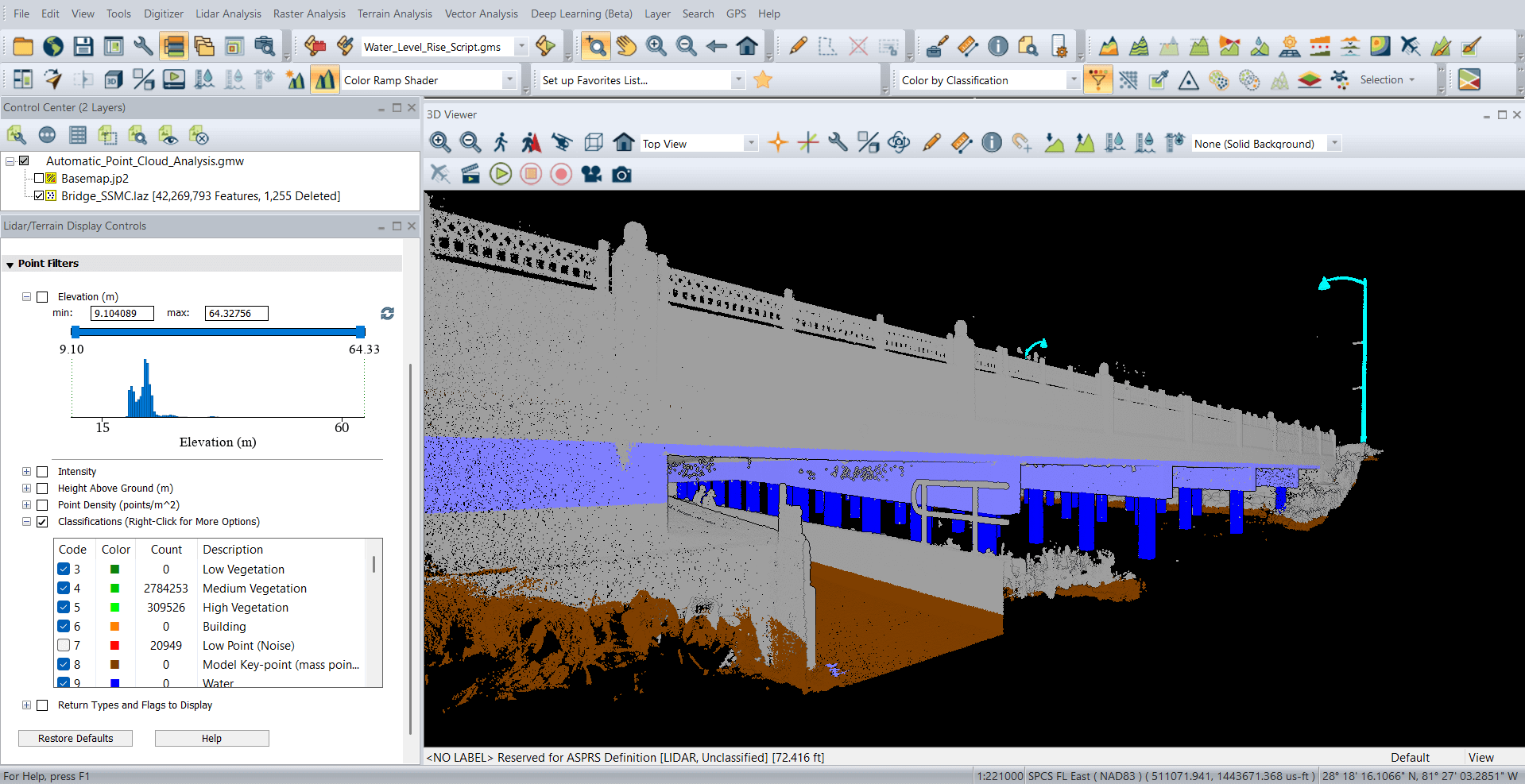
As with any vector data, a point cloud can be cropped to the extent of a preselected polygon, providing a simple method to remove redundancy in any subsequent processes. This is perhaps the most useful of the filtering options available during the data import process, but it can also be applied after the data has been loaded.


Point proximity can also be used as the basis for filtering. Global Mapper Pro’s thinning tool removes points based on a defined density or spacing requirement, while retaining just the point with the maximum, minimum, or average elevation within the immediate neighborhood. This is especially useful when working with high-density, photogrammetrically created point clouds.
Similarly, the Model Key Point tool also thins a point cloud, but works to decimate a point cloud to the least amount of points required to represent the features in the data.


Noise points are defined as those that fall outside the normal elevation range within a specified local area. Noise points may be present because of issues with the data collection process, physical anomalies in the target area, such as birds flying below the aircraft, or for numerous other reasons. Global Mapper Pro’s noise identification tool can either reclassify noise points, or it can immediately remove or delete them, based on a prescribed set of parameters and elevation thresholds.


The first step in the process of transforming a point cloud into a raster DTM is, by necessity, the elimination of points that are not classified as ground. Retaining non-ground or unclassified points will create a surface that includes above-ground features and will not reflect the bare-earth morphology of the target area. Filtering in this context is a simple class selection process, which can be applied to either the on-screen display of the points, or during the gridding or surface creation process. In either case, the elevations assigned to the pixels in the resulting raster layer will be derived from the selected subset of the point cloud.


While Global Mapper Pro offers a wide range of editing and filtering tools, it is important to note that the improvement procedures described in this article are not automatically saved to the original files or loaded layers. In order to save the results of any of the point cloud improvement procedures to a file, the data can be exported in the appropriate point cloud format. The new layer will inherit all of the modified point characteristics and will be limited to those points that have been retained after filtering or deleting points that are not required.
Global Mapper Pro’s powerful analysis, extraction, and surface generation tools understandably garner the most attention and accolades from geospatial professionals. However, it is important to additionally acknowledge the vital role that the Pro’s editing and filtering tools play in these procedures. The better the quality of the raw material, the better the final product.
If you’d like to learn more about Global Mapper Pro and its lidar accuracy tools, download a 14-day free trial and request a demo today! For more information, contact us.
If you enjoyed this blog, you may also find these other resources useful to improving your lidar accuracy and quality:


