Coordinate Reference System Configuration
The Coordinate Reference System tab of the Configure menu is used to modify the projection and datum that the currently loaded data is displayed in, and will be exported as. It specifies the coordinate system and projection used in the workspace, and how any layers using other systems are transformed to match it. Additionally, advanced settings are available to add custom coordinate system, datum, and transformation definitions, allowing Global Mapper to work fluently in local grid systems.
Access the Coordinate Reference System tab by selecting the  Configuration button from the File Toolbar or Tools menu. The current map coordinate system may also be accessed by double clicking on Current Workspace at the top of the Control Center.
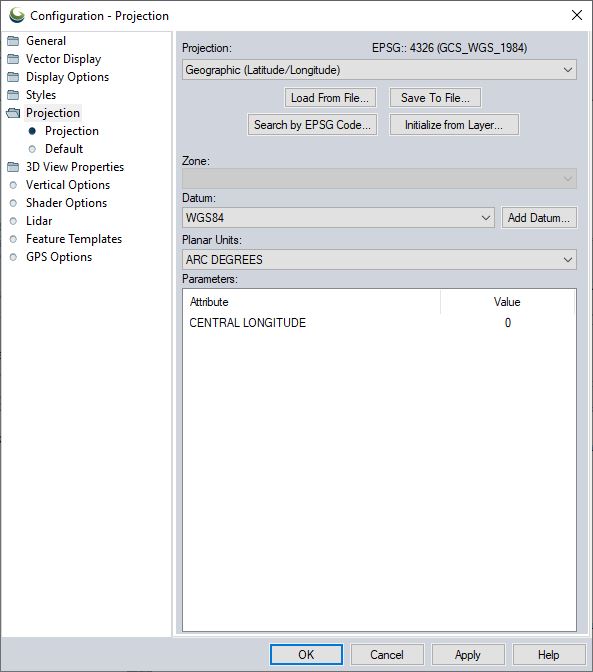
Steps to change Coordinate System/Projection:
- Go to the Coordinate Reference System tab of the Configuration menu. The System line within the Horizontal section of the dialog lists the current coordinate system being used for data display and export.
- Click the
 Select Coordinate System button to the right of System to open the Select Coordinate System from Datasource dialog.
 - Find the coordinate system you want to use by either searching at the bottom of the dialog, or by navigating the folders of systems in the left pane.
- Tip for Searching: The search bar will only search within the folder that is currently selected in the pane on the left. If the coordinate system is not found by searching, click on the top Coordinate Systems folder and search again to search the entire datasource.
- After selecting the desired Coordinate System, click OK to close the Select Coordinate System dialog.
- In the Configure menu, click OK or Apply to apply the new coordinate system and re-project all loaded data.
Horizontal Coordinate Reference System:
System:
The current Horizontal Coordinate System for the workspace is shown in this field. All loaded layers will automatically be transformed and reprojected to this display system. All exported files retain the currently enabled workspace coordinate system.
By default, the workspace coordinate system is set by the first data that is loaded. This can be changed by specifying a different Default Projection.
When Digitizing without first specifying a coordinate reference system or loading other data, Global Mapper will be set to use WGS84 (EPSG 4326.)
Use the Select Coordinate System
To edit the definition for the currently selected coordinate system, click on the Edit Definition
icon. This is advanced functionality, and is often not necessary when working in coordinate systems with built-in support. Editing an existing custom coordinate system will overwrite the previous definition. Attempting to edit a built-in coordinate system will create a new, editable custom coordinate system. If you wish to change the display coordinate system to an existing definition, use the Select Coordinate System button
Built in definitions within the datasource are not editable. In order to make changes to the definition of a built in object, a copy of the object must be created.For more information about the currently selected Coordinate System, click on the Info
button.
Datum:
This field is filled in automatically based on the Coordinate System specified. Use the Info
Units:
This field is filled in automatically based on the Coordinate System specified, but can be modified without changing the Coordinate System field itself using the
Central Meridian for Display:
When a geodetic Coordinate Reference System is selected, this additional field will be visible. Entering a number here, in degrees, will center the display on that meridian. If specified, this setting is saved in workspace files.
Vertical Coordinate Reference System:
System:
The current Vertical Coordinate System for the workspace is shown in this field. If there is a known system, all relevant loaded layers will automatically be transformed to it. When exporting to a format that supports vertical coordinate reference systems, this system will be used if selected in the export dialog.
Note: When loaded data has an "Elevation" attribute, vertical transforms in the workspace will not alter the attribute values. Use the feature info tool to see the adjusted elevation in the current vertical system.
Use the
Units:
This field is also filled in automatically based on the Coordinate System specified, but can be modified without changing the Coordinate System field itself using the
Time:
This section is hidden unless time-dependent transformations are enabled in the Geodetic Settings. Setting a date in Layer Options for a specific layer will allow viable time dependent transformations to be selected.
After a horizontal Coordinate System is specified for the workspace, the Set button determines the epoch which the current workspace coordinate system is associated with. The Clear button removes the set time.
See Time Dependent Transformations for more information.
Additional Options
Save to File, Load from File
The currently selected coordinate reference system and projection can be saved to a PRJ file using the Save to File button. Previously saved PRJ, WKT TXT and ESRI XML files can be loaded using the Load from File button.
By default, the PRJ file will be saved in the newer WKT (well-known-text) format used by most products. For more information on the formats and custom projections, see Loading Projections
Search by EPSG Code
The Search by EPSG Code button is a convenient way to quickly load a specific Coordinate System by entering its numeric EPSG code.
Initialize from Layer
Instead of searching the Datasource or entering an EPSG code, this button sets the workspace coordinate system and projection by choosing from an existing/loaded layer.
Geodetic Settings
Additional settings for projection, coordinate system, and transformation handling are accessed with this button. These include settings related to Auto-Picking coordinate transformations, filtering available transformations by area of use, and enabling time-dependent transformations.
Edit Datasource
To add a custom coordinate system, datum, or transformation, use this button to access and edit the datasource.
Transformations
When a coordinate transformation is performed, the transformation will populate in this window. Right-click on a transformation line to view the details of the transformation currently being used for that layer. Double clicking on a transformation line will open a Search interface to choose a new transformation for that specific layer.
 See Also