Global Mapper Pro provides a number of tools for Quality Control of lidar point cloud data. This includes tools to compare or correct the height of point cloud data to known control points, and to report statistics about subsets of points. It also has tools for displaying and reporting the point cloud density, and for filtering the point cloud by density.
These Lidar QC tools are available from the Lidar Analysis menu. See individual tool pages for more information.
Lidar QC Tool - Compare/ Adjust Elevations to Control Points
The Lidar QC tool compares control points to nearby Lidar points. It can also use the control points to adjust the Lidar elevations to fit the control points.
Fit Point Clouds
Automatically align point clouds by calculating a best-fit adjustment, or manually align them using 3D ground control points.
Compare Point Clouds
Find significantly changed points between a set of point clouds covering the same area.
Strip / Flight Line Alignment
Adjust one Lidar strip / flight line to match another through the manual placement of control points.
Additional Lidar QC/QA Functionality:
 Lidar Metadata and Statistics
In the control center, right click on the point cloud and choose Metadata to view information about the point cloud as a whole, as well as calculated statistics from the point cloud.
Metadata
Some of the available metadata values for point clouds include:
- Lidar Point Count - Total number of points in the point cloud. This is also listed after the feature description in the control center.
- Point Cloud Memory - The amount of memory used to load the point cloud. PREVIEW CLOUD is the memory of the point cloud subset used in drawing.
- Lidar Point Density - point samples per square meter.
- Lidar Point Spacing - Calculated average distance between Lidar points. This is calculated from the point cloud as a function of the overall point density. The point spacing value may be used in Auto-classification tools to determine optimal bin/ grid spacing.
- Lidar Offset, Lidar Scale - these properties are part of the file compression, so the full numeric values do not need to be stored for each point.
- BBOX Area - calculated area of the bounding box containing the point cloud.
- Load Time - amount of time taken to load the file into memory. This does not include the time taken to draw or render the data.
- Min Elevation - the lowest elevation value.
- Max Elevation - the highest elevation value.
Statistics
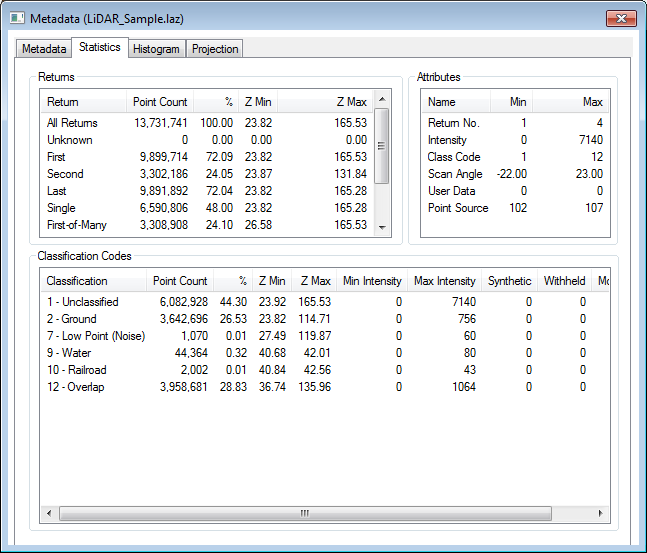
The statistics tab of the metadata dialog displays a summary of the Attributes, Return counts, and Classification Codes.
Calculate Lidar Statistics in Selected Area features
To see the statistics for a subset of points, select an area(s) with the digitizer tool. In the digitizer right-click context menu choose Analysis/Measurement > Calculate Lidar Statistics in Selected Area features. This will display a Lidar Dataset Properties window indicating a summary of the Returns, Attributes and Classification codes for the selected points.
Visualization: Color the Point Cloud by an attribute
Use the Lidar Draw Mode tool (the Color by drop-down menu) to display the points using an attribute such as calculated Point Density, Scan Angle, Elevation, Height Above Ground. The point density and height above ground values are calculated based on all points in the layer. Scan Angle and Elevation values are attributes of the point file.
Filter Lidar data
The Lidar Terrain Display Options, or the Lidar advanced selection options, can be used to refine a selection of point features, limiting which points are displayed or how they are visualized.
Search and Query points
The Search Vector Data tool may be used to query Lidar data. With large point clouds, it is recommended to use the 'Search Onscreen Features Only' setting to limit the results to only visible points.
Report Statistics for Point Attributes
The Search Vector Data tool may be used to report statistics of numeric point attributes, by right clicking on a numeric value in the search results and choosing STATS- Report Statistics for Values of Attribute. The resulting dialog will include the Minimum, Maximum, Average, Standard Deviation, and Sum of the attribute values in that column, for the current listed search results.
Adjust Selected Lidar Towards Surface
This tool will update the position of Lidar points to align towards a surface or surface and trajectory file.
Smooth Selected Lidar Points
Adjust selected points towards an average of the nearby points to remove outliers.