Global Mapper loads many data formats that do not have a projection or coordinate reference system included directly in the file format.
If there is a .prj , world file or .gcp file with the same file name in the same folder, that information will be used automatically to spatially locate the data.
Rasters
Image or raster layers that are loaded with no spatial reference information will provide a dialog of options for loading the image. See Loading Rasters/ Images with No Spatial Reference Information.
Image formats that are geospatial, that are missing reference information may prompt a dialog to specify the coordinate system as described below for vector data.
Vectors
Vector data formats contain coordinate values in the stored geometry, so if the coordinate system is unknown, there will be a prompt to specify it. Note that vector data can be shifted or rectified after the coordinate system is interpreted, and a .gcp file of the same name in the same folder as the vector data will apply additional transformation to the data.
For more information on 3D model projections see Loading 3D Model formats
Suggested Projection
In this case a Select Coordinate System dialog will appear requesting to confirm the coordinate system. Select the coordinate system from the list which corresponds to the frame of reference the X and Y coordinate values in the file are based on.
The suggested system for the layer uses the following logic, including a check to see if the unit values are of an appropriate range:
- Coordinate system of other files loaded in the workspace from the same folder
- Last coordinate system user selected on a dialog in this session
- Current workspace coordinate system
- Coordinate system from default.prj in global_mapper.exe path
- *Coordinate System from default.prj in User Data Folder path
- Last coordinate system user selected on a dialog in previous session of GM
- Default UTM/15N/NAD83 system
*To customize the default coordinate system, add a default.prj file specifying a system to the User Data Folder.
Files with unknown units
Sometimes the file format contains partial projection or coordinate system information, but does not specify the horizontal or vertical unit. An unspecified elevation unit is especially common among gridded elevation formats.
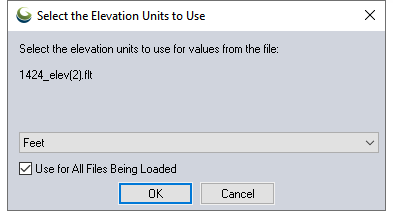
In this case, the software will provide a prompt to specify the horizontal or vertical unit. Choose the elevation unit that Global Mapper will use to interpret the Z values by. When saving a workspace with the gridded file after choosing the elevation unit, the workspace will retain the elevation unit that was chosen for the file.
Once the file is loaded, go to the Layer Options Dialogs and modify the Elevation Units Interpretation on the Alter Elevation Values to change the elevation unit assigned to the Z values in the layer, or the Layer Coordinate System Tab to change the Planar Units associated with the coordinates in the file.
 Related Topics