Create Viewshed
This tool performs a viewshed analysis using loaded elevation grid data with a user-specified transmitter location, height, and radius. Alternatively, the tool can calculate the optimal location or height of the transmitter.
A Viewshed A viewshed is an analysis that shows all of the locations that are visible from a given point, or likewise, all of the locations that can see the given point. is an analysis that shows all of the locations that are visible from a given point, or likewise, all of the locations that can see the given point. All areas within
the selected radius that have a clear line of sight to the transmitter
are colored with a user-specified color. This type of analysis can be used for communications engineering to measure the area that a signal transmitted from a tower will reach. In defense and emergency management, it is used to model all the areas that are visible from a lookout tower. Viewshed analysis also has numerous other applications, from real estate and planning to survey planning with a base station.
A viewshed is an analysis that shows all of the locations that are visible from a given point, or likewise, all of the locations that can see the given point. is an analysis that shows all of the locations that are visible from a given point, or likewise, all of the locations that can see the given point. All areas within
the selected radius that have a clear line of sight to the transmitter
are colored with a user-specified color. This type of analysis can be used for communications engineering to measure the area that a signal transmitted from a tower will reach. In defense and emergency management, it is used to model all the areas that are visible from a lookout tower. Viewshed analysis also has numerous other applications, from real estate and planning to survey planning with a base station.
The Create Viewshed tool can be found in the Terrain Analysis Menu, or from the Viewshed button from the Analysis toolbar, or with the Alt+V keyboard shortcut.
General Steps to Perform a Viewshed Analysis
-
Select the Create Viewshed tool from the Terrain Analysis toolbar or Tools Menu.
-
Specify the transmitter location(s) from which to analyze the viewshed by clicking on the map or selecting existing points.
-
Optional: To find the best transmitter placement, use Optimize Transmitter Locations.
-
-
Set the viewshed parameters in the Viewshed settings described below.
-
Click RUN to run the Viewshed Analysis.
-
Modify the parameters for a viewshed and run the analysis again by right-clicking on the Viewshed Analysis layer group in the Control Center and selecting to Edit Viewshed Parameters and Recalculate.
-
Settings for the Viewshed Analysis tool are split into five sections:
- Transmitter(s) and View Radius
- Receivers and Coverage
- Obstructions from Vector Data (i.e. buildings and fences)
- Additional Settings
- Output Layers
Transmitter(s) and View Radius
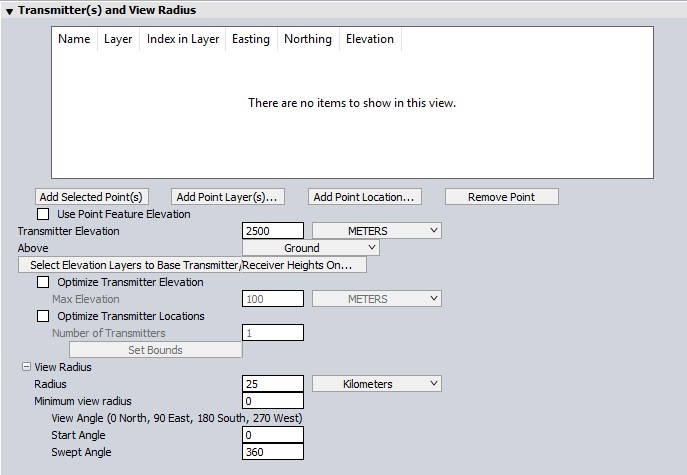
Adding Transmitter Locations:
Transmitter locations can be added from existing point features in the workspace,manually clicked locations, or derived from using the Optimize Transmitter Location option.
Add Selected Points - Adds only point features that are selected in the workspace.
Calculating Viewsheds at Multiple Points
With multiple point features, the viewshed calculation values can be initialized from special attributes of the point features. The values selected on the dialog will be used, unless the point features contain a viewshed parameter attribute. The attribute value will override the dialog selection. Defining the viewshed parameters with attributes allows for batch calculating viewsheds, with different parameters for each selected point based the point attributes.
Add Point Layers - Specify loaded point layers.
Add Point Location - Opens a mini map to allow the manual placement of a transmitter location.
Similarly, when the viewshed tool is first opened, the cursor will say “V. Shed” and clicking will add a point directly from the workspace at the cursor's location. For help creating point features, see Create New Point/Text Features. To improve transmitter locations, or to find the best location or height, use choose an Optimize setting. Only one Optimize setting can be run at a time.
Transmitter Elevation
Transmitter Elevation Specify the height above ground or sea level for the transmitter that the viewshed analysis will be simulating.
Select Elevation Layers to Base Transmitter Heights On...
The Select Elevation Layer(s) to Base Transmitter/ Receiver Heights On button displays a dialog allowing you to select which of the loaded elevation layers you want to base ground-relative transmitter and receiver heights on. The default is to use all loaded layers. When layers are present for both ground elevations and elevations of all features that could block transmission, use this option to specify that transmitter and receiver heights are based on the ground elevations. This can help to ensure that transmitter and receiver elevations are relative to the ground, while the actual visibility of each point will be based on the highest elevations present among all loaded layers.
Optimize Transmitter Elevation

|
This tool requires Global Mapper Pro |
Iteratively searches for the optimal elevation based on the existing horizontal transmitter location. The optimal elevation is calculated considering the specified Max Elevation, View Radius, and Desired Coverage settings found in the Receiver and Coverage section of the dialog.
After processing, the Optimized Transmitter Height will be reported in a pop-up window. Additional attributes will be added to the generated transmitter point feature, including transmitter ground height, above ground height, receiver height, percent visible, and absolute elevation of the transmitter.
Max Elevation - the highest acceptable elevation for the transmitter placement.
Optimize Transmitter Locations
|
|
This tool requires Global Mapper Pro |
Enter the number of transmitters to be placed, and the total bounds within which the transmitters could be placed.
Use this option to find the horizontal locations with the best coverage for the specified Transmitter Elevation(elevation constraint) and optionally Set Bounds.
Number of Transmitters - Enter the number of transmitters to be placed.
Set Bounds - Specify the total bounds within which the transmitters could be placed.
View Radius
The View Radius section specifies how far in each direction from the transmitter to check for visibility. Typically, this should be set to the effective range of the transmitter.
Minimum view radius
To ignore areas close to the transmitter, specify a minimum view radius. Use the default of 0 to include everything from the transmitter out to the selected view radius.
View Angle
The View Angle section has options to limit the viewshed to a particular subsection of the complete radial area.
Start Angle- specifies the cartographic angle at which the radial subregion begins. This angle is a cartographic angle, meaning that 0 degrees is north and angles increase clockwise.
Swept Angle- specifies the number of degrees clockwise to include in the viewshed. For example, if the transmitter being analyzed sweeps an arc from due south to due west, a start angle of 180 with a swept angle of 90 would be used. To perform a viewshed analysis over the entire area, keep the defaults of starting at 0 degrees and sweeping through 360 degrees.
Receivers and Coverage
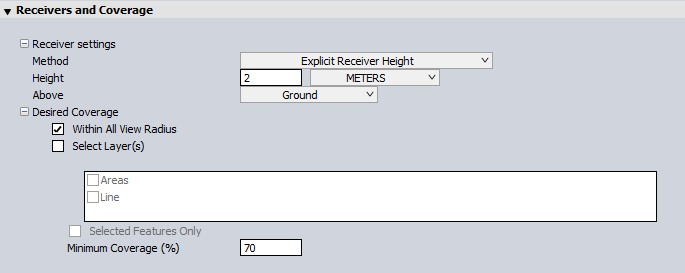
Receiver Settings
Choose a receiver Method:
Explicit Receiver Height
The Receiver Elevation section allows you to specify the minimum height above the ground or sea level (absolute elevation in your vertical datum) from which the transmitter must be visible for the location to be considered visible. It is common to specify an elevation above ground, but specifying an elevation above Sea Level can be useful for aviation purposes.
Transmission Angle for Receiver Elevation
Specify that the receiver elevation should be calculated based on an elevation angle relative to the horizon from the transmitter. This is useful for situations such as a radar dish that points up at an angle, to determine where the signal can be seen.
Transmission Angle Range
This option specifies a transmission angle range for a beam transmitted from the transmitter. From this, the viewshed will depict where that beam would hit the terrain surface (or some user-specified distance above the surface).
Desired Coverage
Specify the desired coverage to be used when running Optimized Transmitter Elevation. These settings will be grayed out when Optimized Transmitter Elevation is not checked.
Within All View Radius - This option considers the entire view radius of the transmitter as the area of desired coverage.
Select Layers - A layer containing vector area features can be used to define the desired coverage area.
Minimum Coverage - The minimum acceptable percent of coverage for determining the optimized transmitter elevation.
Obstructions from Vector Data (i.e. buildings and fences)
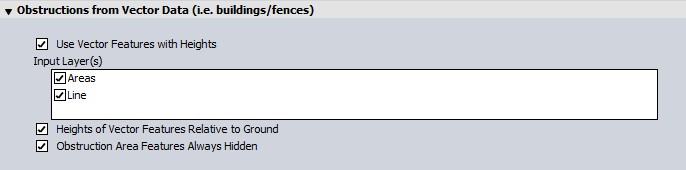
Use Vector Feature with Heights Check this box to consider vector data layers with elevation values, checked in the Input Layers, when performing the viewshed analysis. This allows for 3D vector features representing things like buildings, fence lines, towers, etc. to block portions of the view, creating a more realistic viewshed.
Heights of Vector Features Relative to Ground - enable this option when the elevation values stored with vector features are relative to the ground. Leave this option disabled to indicate that heights are relative to mean sea level. Typically heights for vector features are specified relative to the ground. If any area features are included and their heights are relative to the ground, the obstruction heights within those areas will be increased by the specified amount, but any receiver heights will still be based on the terrain. This makes things like wooded areas very easy to model.
Obstruction Area Features Always Hidden - this option specifies that any locations within an obstruction area will be marked as hidden, rather than only those that actually would be hidden.
Additional Settings
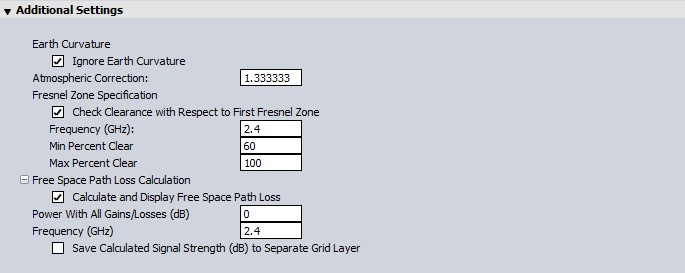
Earth Curvature
The Ignore Earth Curvature checkbox determines whether or not to take the curvature of the earth into account while performing the viewshed analysis. In addition, when earth curvature is being used, it is possible to specify an Atmospheric Correction value to be used. The atmospheric correction value is useful when determining the viewshed for transmitting waves whose path is affected by the atmosphere. For example, when modeling microwave transmissions a value of 1.333 is typically used to emulate how microwaves are refracted by the atmosphere.
Fresnel Zone Specification
The Fresnel Zone Specification section allows you to have the viewshed analysis also check that a certain portion (the Min and Max Percent Clear values) of the first Fresnel zone for a transmission of a particular frequency is clear. The typical standard is that good visibility requires that at least 60% (the default) of the first Fresnel zone for the specified frequency be clear of obstructions. If you specify a maximum Fresnel zone percentage clear other than 100%, only those locations where the minimum percentage of the 1st Fresnel zone that is clear is between your specified percentages will be marked as visible.
Free Space Path Loss
The Free Space Path Loss Calculation section allows you to display the power at any given location taking free space path loss into account. You can specify the total power from the rest of the link budget (i.e. transmission power plus antenna gain minus any other power losses excluding free space path loss) and the signal frequency. Then as you move the cursor over the viewshed you can see the remaining power at the location. In addition the viewshed will become more transparent as the signal power becomes less.
Output Layers
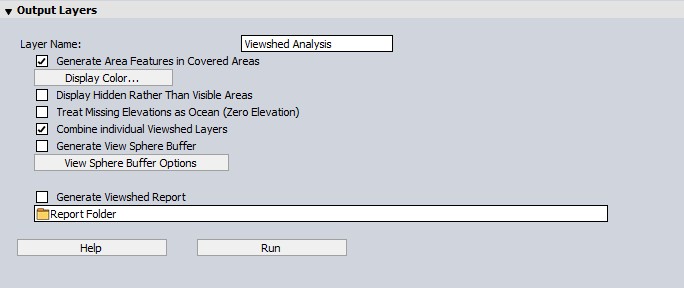
Layer Name - Enter a layer name for this viewshed analysis. This name will be displayed in the Control Center and will also be the name of the transmitter point created by the analysis for display on the map.
Generate Area Features in Covered Areas This option specifies that viewshed coverage area (polygon) features should be generated for those areas that are visible. These generated area features then behave just like any other vector feature and can be exported to vector formats, like Shapefiles, for use in other software.
Display Color... displays a dialog that allows you to select the color in which to display the visible areas on the map.
Display Hidden Rather than Visible Areas -This option causes the generated viewshed to cover those areas that would NOT be visible, rather than those that would be visible from the transmitter location.
Treat Missing Elevations as Ocean (Zero Elevation) - empty cells will be treated as if they are at 0 sea level.
Combine Individual Viewshed Layers - When processing multiple viewsheds at one time, the Combine Individual Viewshed Layers option can be used to combine the individual Viewshed outputs into a single overlapping layer. Each viewshed feature retains its individual feature attributes. An additional TOWER_ID attribute is added to allow for the ability to select attributes (viewsheds) by tower points.
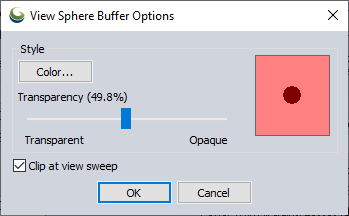
Generate View Sphere Buffer- This option creates a spherical mesh buffer feature centered on the transmitter location and clipped at the reference terrain. This feature will be rendered in 3D to view the extent of the viewshed area in the 3D Viewer. Click on the '...' button next to the checkbox option to open the View Sphere Buffer Options. Here, the color and transparency of the mesh feature can be set, and an option to Clip at view sweep will crop the 3D buffer to the start and swept angle specified in the Viewshed Setup. The color and transparency of the generated view sphere mesh can be edited later through the Modify Feature Info dialog.
Generate Viewshed Report - When checked, this option will create a report for the viewshed analysis in the location specified. The report includes the location of each transmitter, the height above ground, the settings used for processing, along with the resulting coverage statistics and coverage map. The report will automatically be opened in a browser tab when processing is complete.
Results
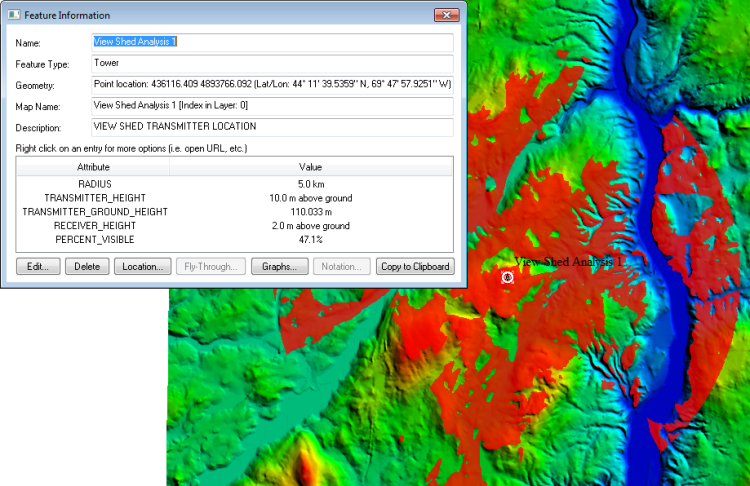
After setting up the viewshed calculation in the dialog and pressing the RUN button, the viewshed analysis will be performed. When complete, the results will be displayed on the main map display as a new overlay. All visible areas within the specified radius will be displayed using the selected color. The overlay will default to being 50% translucent, so that areas underneath the viewshed are still visible. To modify the translucency of the overlay, double-click on the layer in the Control Center to open the Layer Options.
In addition, a point will be created at the selected transmitter location. When selected using feature info tool, this point displays information about the viewshed analysis as shown below.
To modify the settings used to calculate the viewshed and recalculate it using currently loaded data, right click on the Viewshed layer in the Control Center and select the option to modify the viewshed.
Example: