Deep Learning Models Configuration Settings
The Deep Learning Models section in the Configuration provides tools for managing machine learning models for Deep Learning Analysis.
Access the Insight and Learning Engine tab in Configuration by selecting the  Configuration button from the File Toolbar or Tools menu.
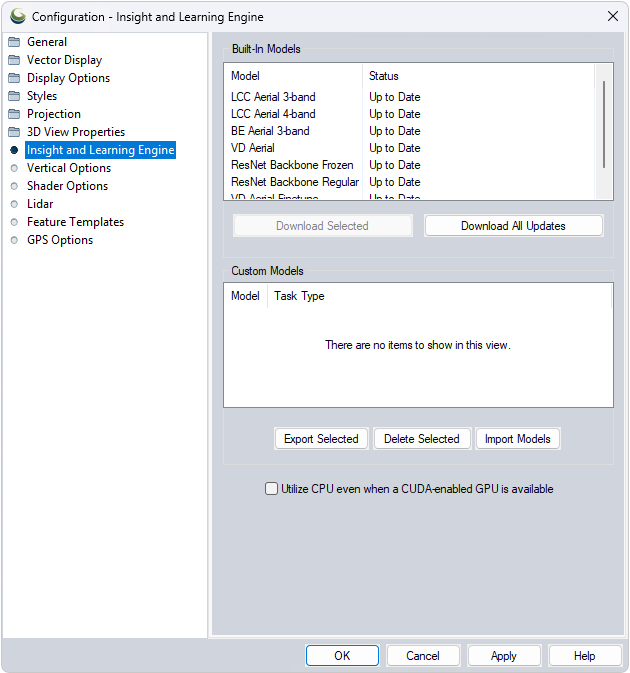
Built -In Models
Blue Marble Geographics creates standard AI models that are used by the Deep Learning Analysis tools, such as building and vehicle detection. Due to file size, these come as an additional download beyond the initial install of Global Mapper. Users are prompted to download the models the first time theDeep Learning Analysis tools are opened, and are required for use of the Deep Learning Analysis tools. Alternatively, the full set of models can be downloaded from the Extra Downloads section of the Global Mapper installer wizard, as they are included in the Deep Learning Analysis module option.
Right-click anywhere in the Built-in Models section to access the Refresh List option to include new Custom Models, or reflect model changes in the list.
Downloading Models
Updates for the models are provided periodically and are available for download from this Configuration menu.
These models are occasionally updated outside of Global Mapper version updates. When available, these updates can be downloaded from the Download Selected and Download All Updates buttons. Updated files overwrite their older predecessors. Sometimes new model updates depend on the latest versions of AI tools, in which case they will require you to update Global Mapper in order to download the model update; however, if you aren't planning to update, your current version of the models will continue to work just fine. When new models are released, the Download All New Models button can be used to acquire them.
Custom Models
Custom Models are created in the Custom Models tabs in the Object Detection and Land Cover Classification tools. Created Models can be Exported and Imported as zip archives to share between other machines.
Utilize CPU even when a CUDA-enabled GPU is available
If selected, even if a compatible CUDA-enabled GPU is detected, the Deep Learning Analysis tools will still be run on CPU rather then GPU.
The checkbox option to: Utilize CPU even when a CUDA-enabeled GPU is available is typically disabled by default for optimal processing speeds.