Information / Navigation
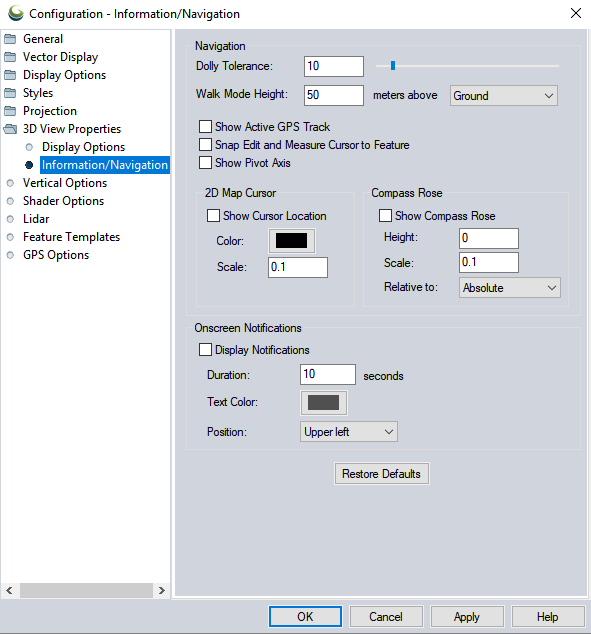
The Information and Navigation settings help to control how the camera moves around data in the 3D Viewer and what information and notifications are displayed in the viewer.
Access the 3D View Information/Navigation options by selecting the  Configuration button from the 3D Window. Or, select the Configuration button from the File Toolbar or Tools menu, and navigate to the 3D View Properties section. In the Configuration dialog navigate to Information/Navigation section in the 3D View Properties folder.
Information / Navigation
| Dolly Tolerance |
The dolly tolerance is an advanced setting that controls how close the camera can get to the center of the pivot axis. The number set represents a percentage of the data extent. Adjusting the dolly tolerance can allow for finer zoom and rotation control, when set to a small number, or faster movement through data when set to a large number. When the dolly tolerance is hit when zooming in, further zooming will push the pivot access along, similar to walking through the data while pushing the pivot axis on a dolly cart in front of the camera. For example with a dense lidar point cloud, setting a small dolly tolerance, such as 1, will allow for more comfortable close examination of clusters of points within the point cloud. Setting a larger dolly tolerance with the same dataset will facilitate faster update of the pivot access when zooming, and allow for a feel of faster movement through the data. |
|---|---|
| Walk Mode Height |
Specify the height when entering |
| Show Active GPS Track |
Check this option and the GPS track will be displayed in the 3D View window |
 Snap Edit and Measure Cursor to Feature Snap Edit and Measure Cursor to Feature |
Check this option to enable Snap Cursor Mode. This setting is also available with the toolbar Snap Cursor button. |
 Show Pivot Axis Show Pivot Axis |
Display the pivot axis. This is also available as a button on the 3D view, or toggled with the P key. For more information see Rotating, Moving, and Zooming in the 3D viewer |
| 2D Map Cursor |
When Show Cursor Location is checked, the location of the cursor on the 2D map display will be indicated with a vertical line. Use the Color and Scale settings to modify the appearance of that line. |
 Show Compass Rose Show Compass Rose |
Display a Compass in the 3D Viewer. This display is also available as buttons on the 3D Toolbar. Compass Rose HeightSpecify the height of the Compass or 3D axis. Compass Rose ScaleSet the scale factor of the compass rose symbol. Relative toSpecify what the defined height is relative to.
|
| Onscreen Notifications |
Onscreen notifications provide a notification message when properties are modified in the 3D view. Display NotificationsCheck this option to toggle on onscreen notifications. Onscreen notifications appear when settings are changed in the 3D view.
Notification text colorSpecify the text color of the notification. DurationSpecify how long the notification will appear after a property is changed. PositionSpecify the position of the notification box in the 3D View. |
 Walk Mode. Height can be enter as above Ground (based on the top terrain surface) or Sea Level (elevation above 0) using the drop-down.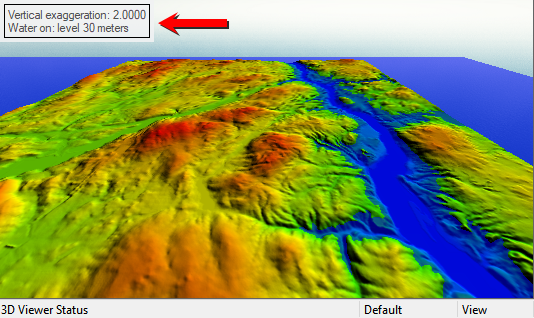
Restore Defaults
Press this button to reset the values for all 3D Information/ Navigation options.